AI Workout Generator:
Smart Routine Builder & Execution Planner
Moving past raw chatbot text dumps to structured, execution-ready workout routines with automated set rest timers, video technique timestamps, and fatigue-managed progressive overload.
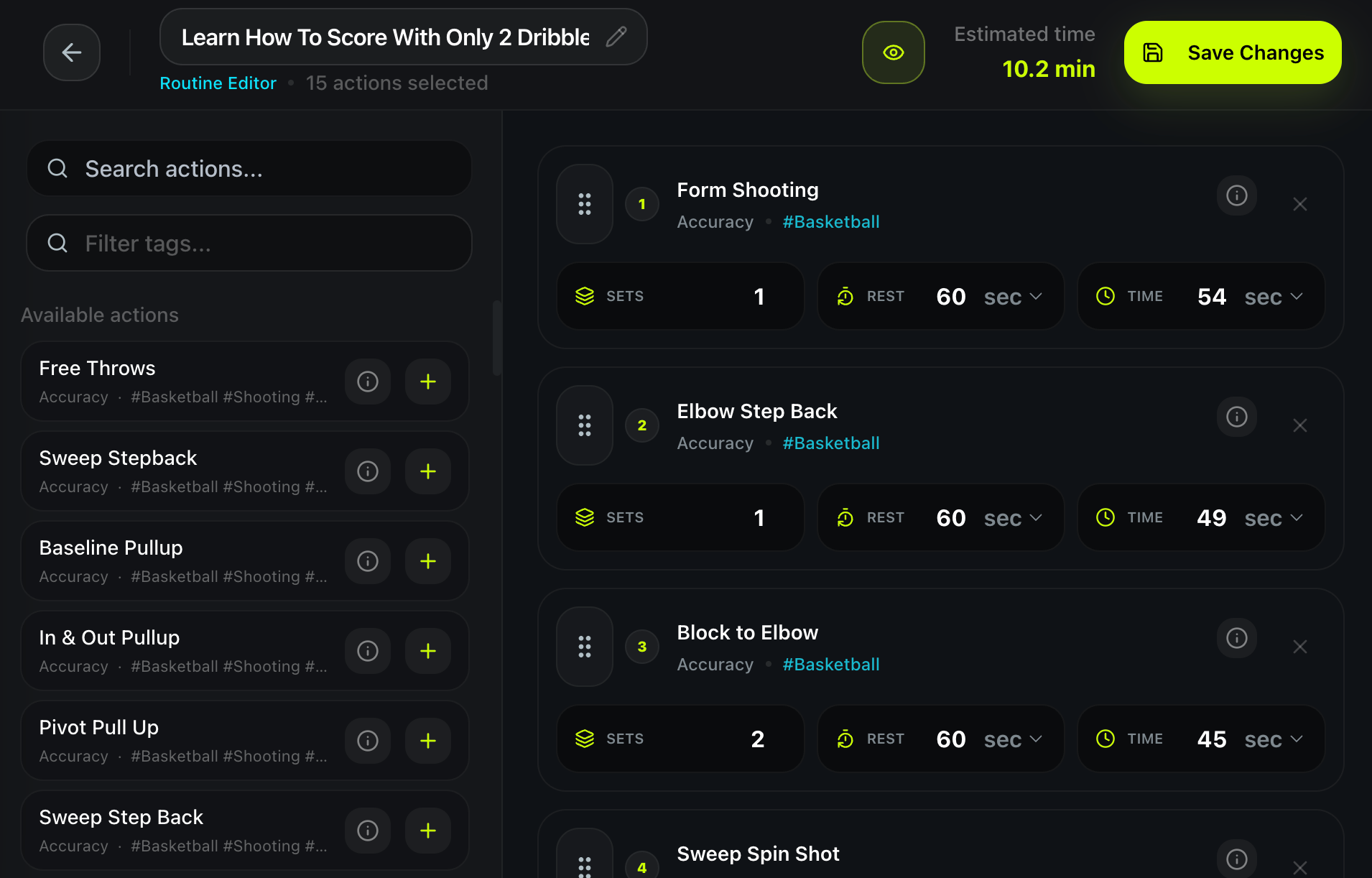
Structured Output vs Text Dumps: TrainFlow transforms algorithmic parameters into reorderable modular actions with explicit set numbers, target repetitions, and second-by-second rest durations.
Executive Summary: Why Raw Chatbot Prompts Break Down on the Gym Floor
In recent years, artificial intelligence has fundamentally shifted how training information is gathered. Asking a general-purpose Large Language Model (LLM) such as ChatGPT, Claude, or DeepSeek to "build me an upper/lower hypertrophy workout plan" yields hundreds of words of plausible-sounding fitness advice within seconds.
However, when trainees take these raw AI text dumps onto a crowded gym floor, the system breaks down immediately. A wall of static bullet points in a chat window does not calculate session pacing, does not provide an automated countdown between demanding working sets, and offers zero guidance when a planned cable machine is occupied.
The 4 Failure Modes of Generic Chatbot Workout Generation
Why pasting ChatGPT text into your smartphone notes app compromises workout intensity and long-term progression.
Zero Gym Floor Interactivity
Chatbot outputs are static markdown text. When resting between sets of heavy squats, you cannot tap to log reps, cannot trigger an automatic 120-second recovery timer, and are forced to switch between your notes app, a stopwatch app, and social media notifications.
Hallucinated & Unbalanced Volume
Generalist LLMs lack biomechanical fatigue constraints. They frequently generate 28–35 total working sets in a single session, pairing heavy deadlifts immediately after max-effort back squats. This creates excessive systemic fatigue and junk volume that stalls recovery.
Disconnected Technique Guidance
When a chatbot recommends a complex movement like a Bulgarian Split Squat or Romanian Deadlift, it gives you a bullet point. If your ankle mobility is restricted or you need setup cues, you must leave the app to search YouTube, exposing yourself to algorithmic rabbit holes and lost workout focus.
No Progressive Overload Tracking
Chatbot responses are ephemeral conversation threads. They do not maintain a permanent database of your logged weights, reps, or time-under-tension across 8 to 12 weeks, rendering systematic double-progression tracking virtually impossible.
The 4-Step Engineering of an Effective AI Workout Generator
How algorithmic routine generation must be structured from physiological constraints to mobile execution.
Constraint Matrix & Frequency Allocation
Mapping weekly recovery budgets to realistic splits
Stimulus-to-Fatigue Ratio (SFR) Titration
Eliminating junk volume through validated exercise science
Action Architecture & Precision Micro-Parameters
Setting numeric rest intervals and form benchmarks
Frictionless Mobile Execution Hand-Off
From desktop algorithmic design to distraction-free gym floor tracking
Comparative Analysis: Raw Chatbots vs. Static PDFs vs. TrainFlow AI Engine
A detailed feature breakdown of how different routine creation methods perform when put to the test.
| Feature Capability | Raw LLM Prompt (ChatGPT/Claude) | Static Fitness PDF / Spreadsheet | TrainFlow AI Routine Engine |
|---|---|---|---|
| Generation Speed & Customization | Instant (Unstructured) | Zero (Rigid templates) | Instant + Fully Customizable |
| In-Gym Focus UI | None (Text chat window) | Awkward pinch-to-zoom cells | Mobile Focus Mode with 1-tap logging |
| Automated Rest Timers | ❌ None (Must use phone timer) | ❌ None | ✅ Automatic countdown & sound cues |
| Precision Video Form Integration | ❌ None (Text descriptions) | ⚠️ Generic links to YouTube | ✅ Embedded timestamped video clips |
| Modular Reordering & Swapping | Requires re-prompting | Cumbersome manual editing | Drag & drop action cards instantly |
| Pricing & Cost | $20/mo for Plus/Pro LLM | Often sold for $30–$80 ebooks | 100% Free Web Tools & Pro AI Planner |
Prompt-Driven Routine Generation
Type natural language training prompts (e.g., "30-minute dumbbell chest and shoulder focus"). TrainFlow matches exercises from your library to generate an execution-ready routine.
Launch AI Routine PlannerRule-Based Plan & Routine Builders
Generate starting weekly splits with interactive dropdowns, or drag and drop action cards into custom routines. 100% free with no account required.
Inside TrainFlow: The Action-Driven AI Routine Ecosystem
Explore the actual components that take your generated workout from an abstract plan to physical execution.
The Atomic Reusable Action Library
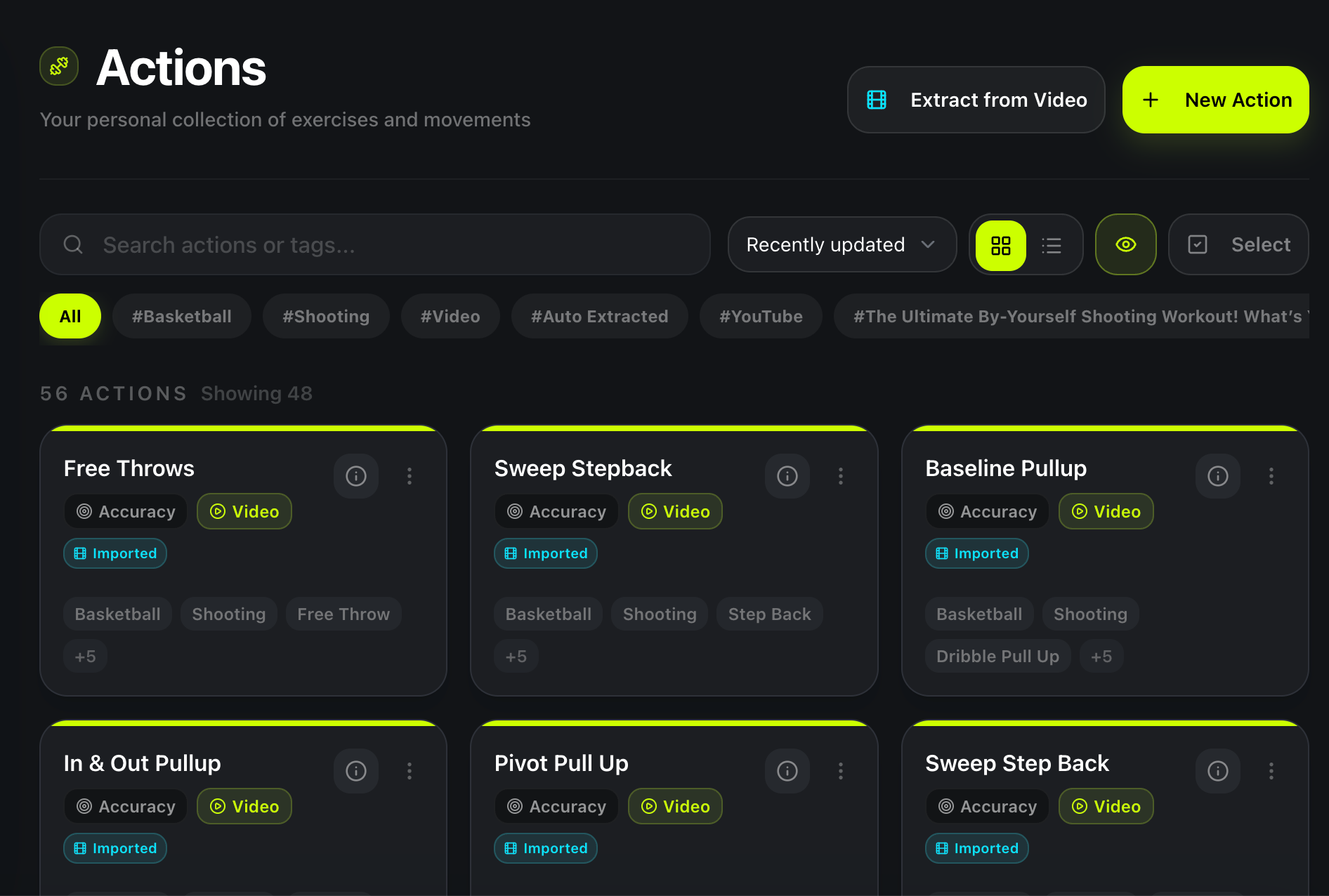
Every movement generated by our AI tools is treated as an individual, reusable building block. Each action stores your preferred grip variations, targeted muscle groups, equipment requirements, and attached YouTube form demonstrations.
- Filter actions by muscle, dumbbell, barbell, or cable
- Preserve custom coaching notes across multiple splits
Distraction-Free Mobile Focus Mode
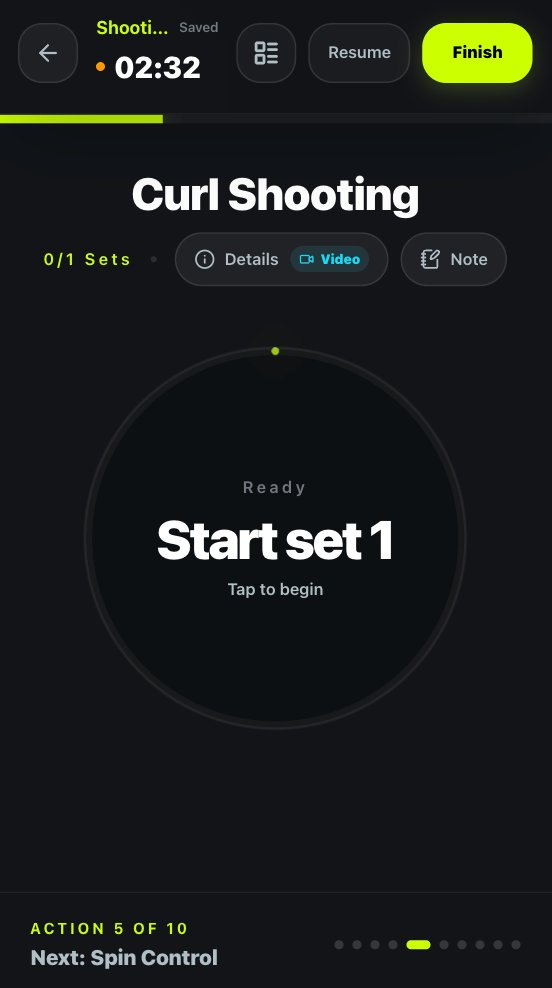
When your routine is transferred to your phone, TrainFlow's mobile PWA strips away social feeds and notifications. You get a bold, high-contrast display featuring current set targets, single-tap completion, and a prominent countdown timer for rest intervals.
- Enforces strict training density and workout pacing
- Instant audio chime signals when your rest period concludes
Precision Timestamped Video Clips
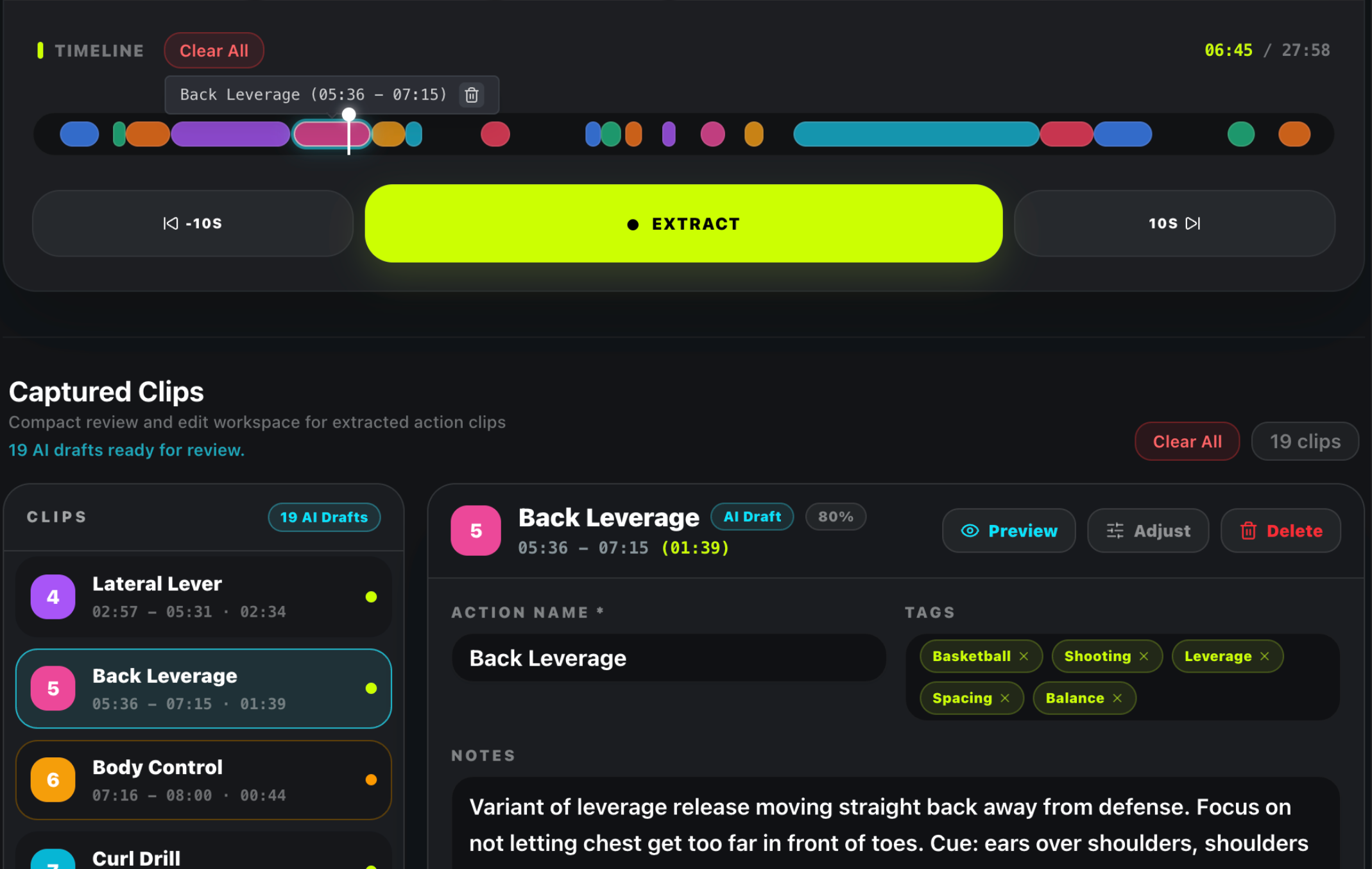
Never guess exercise form again. Instead of generic 3D stick figures, TrainFlow allows you to extract precise 10-to-30 second timestamp loops from top YouTube coaches. Review technique directly on your mobile screen right before initiating your heavy working set.
- Loop specific setup benchmarks without ads or distractions
- Replaces vague written text with visual kinesthetic feedback
4 Common Traps When Using an AI Workout Generator
Avoid these widespread pitfalls to guarantee long-term strength and muscle adaptations.
Trap 1: The "Novelty Syndrome" (Switching Routines Constantly)
Because AI makes generating new workout splits instantaneous, many lifters fall into the trap of generating a brand-new routine every week. Muscle hypertrophy requires motor learning and systematic progressive overload across the exact same movement patterns over 8–16 weeks. Use AI to build a solid foundational routine, then commit to it.
Trap 2: Generating Workouts Without Defined RIR / RPE
Prescribing "3 sets of 10 reps" without designating proximity to failure is meaningless. Doing 10 reps with a weight you could lift for 20 reps produces near-zero mechanical tension. Ensure your generated actions target 1–2 Reps in Reserve (RIR) on compound movements and 0–1 RIR on isolations.
Trap 3: Redundant Resistance Profiles
Unconstrained AI models often program dumbbell flyes, cable flyes, and pec deck flyes in the exact same chest workout. This causes unnecessary joint wear on the anterior shoulder capsule without providing complementary strength curve variations.
Trap 4: Ignoring Axial Spinal Loading
A workout that pairs barbell back squats, Romanian deadlifts, barbell overhead presses, and barbell bent-over rows places extreme cumulative fatigue on your lower back erectors. An intelligent routine substitutes chest-supported rows and dumbbell split squats to balance spinal load.
Real-World Case Studies: Algorithmic Training in Practice
How athletes use TrainFlow's AI workout architecture to solve real schedule and physique hurdles.
The 3-Day Time-Crunched Executive
Constraint: 45 minutes max, adjustable dumbbells & doorway pull-up bar
David, an engineering executive, had only 45 minutes on Monday, Wednesday, and Friday mornings before family commitments. Raw chatbot prompts had suggested 60–75 minute workouts with commercial cable machines he didn't own.
The Intermediate Hypertrophy Trainee
Constraint: Plateaus in bench press & chronic shoulder impingement
Elena had been lifting for 3 years but experienced recurring anterior shoulder pain whenever bench pressing with a flat barbell. Standard workout generators kept prescribing heavy barbell benches and shoulder overhead presses.
Frequently Asked Questions About AI Workout Generators
Expert answers to common technical and training questions about algorithmic routine creation.
What makes an AI workout generator better than a raw ChatGPT or Claude prompt?
A raw ChatGPT or Claude prompt returns an unformatted wall of markdown text with zero in-gym interactivity. It does not automate rest countdowns, cannot verify if 28 sets per session exceeds your recovery capacity, and forces you to juggle notes on a sweaty phone screen. A dedicated AI workout generator translates your physiological parameters into modular, structured action cards with embedded rest intervals, exercise video timestamps, and single-tap mobile tracking.
Can an AI workout generator adapt to limited home gym or travel equipment?
Yes. An effective AI workout generator takes equipment availability as a primary constraint filter. Whether you have access to a full commercial gym, a pair of adjustable dumbbells, resistance bands, or only bodyweight, the engine selects biomechanically equivalent exercise variations that match your stimulus targets without hallucinating machines you don't own.
How does TrainFlow ensure exercises generated by AI don't cause overtraining?
TrainFlow applies strict Stimulus-to-Fatigue Ratio (SFR) principles and weekly volume tiering. Rather than prescribing excessive 'junk volume,' the routine builder caps working sets per muscle group within scientifically validated hypertrophic ranges (typically 10–20 weekly sets for intermediates), prioritizes compound movements when neural recovery is fresh, and enforces minimum rest intervals between demanding sets.
Do I have to pay a monthly subscription to use TrainFlow's workout tools?
No. TrainFlow offers open, browser-accessible fitness tools including our Workout Plan Generator and Workout Routine Builder completely free. You can generate custom training splits, build reusable exercise actions, reorder supersets, and launch distraction-free mobile training sessions with automated rest timers without any mandatory subscription paywalls.
How does progressive overload work when using an AI workout generator?
An AI workout generator provides the baseline architectural blueprint—sets, reps, and target rest intervals. As you execute sessions in TrainFlow's mobile focus mode, you log your completed weights and repetitions. Over successive weeks, you progressively overload by either adding load, increasing repetitions within your target bracket, or reducing rest times while maintaining strict movement tempo.
Can I attach my own custom YouTube form videos to AI-generated exercises?
Yes. Every exercise action generated or customized in TrainFlow can be paired with an exact YouTube video URL and start/end timestamps. When you reach that exercise on the gym floor, a single tap displays the precise technique demonstration without ads or algorithm rabbit holes, ensuring proper execution before your set begins.
Ready to Upgrade from Chatbot Text to Precision Training?
Experience the difference between static AI text and an interactive, action-driven training engine. Build your custom routine with our prompt-driven AI Routine Planner, or use our free interactive tools with no account required.